How to use
Steps to enable Two-Factor
Authentication (2FA) for Facebook
(Other platforms similar to Facebook)
Open Facebook, tap Menu and then Settings & privacy.
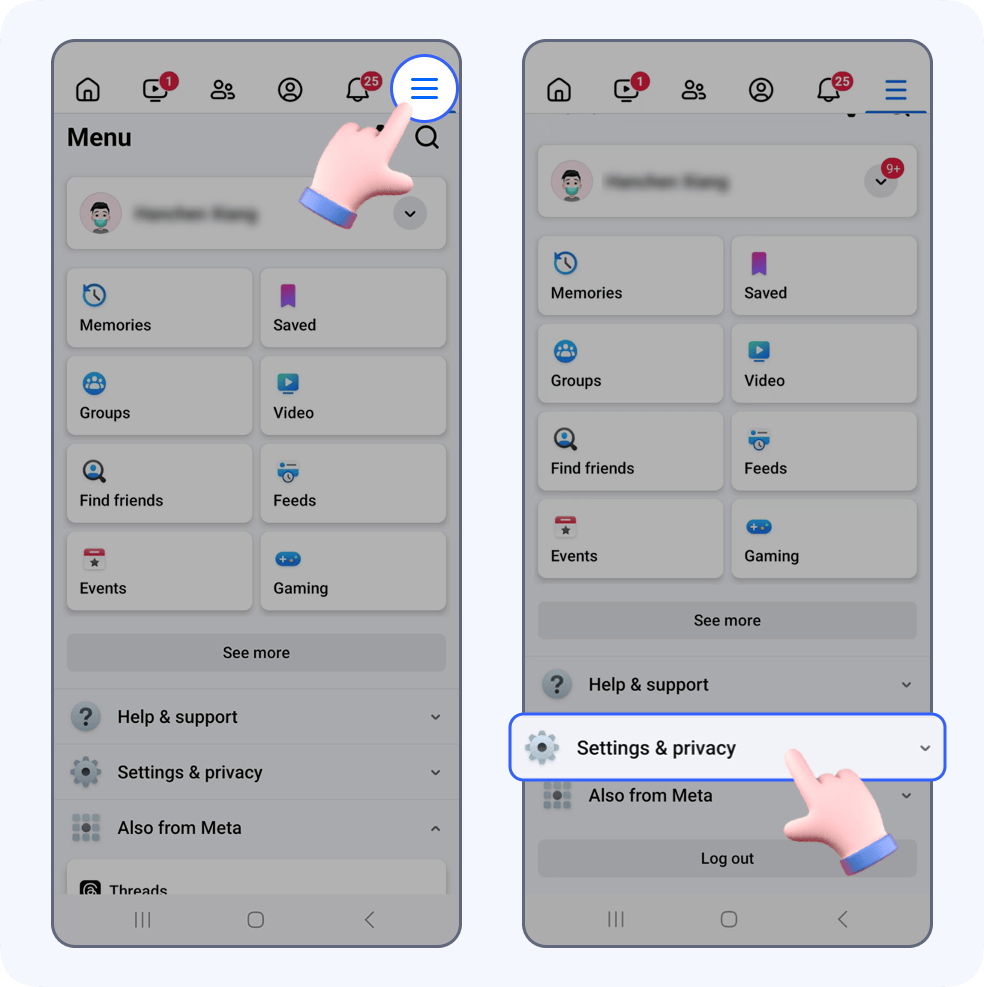
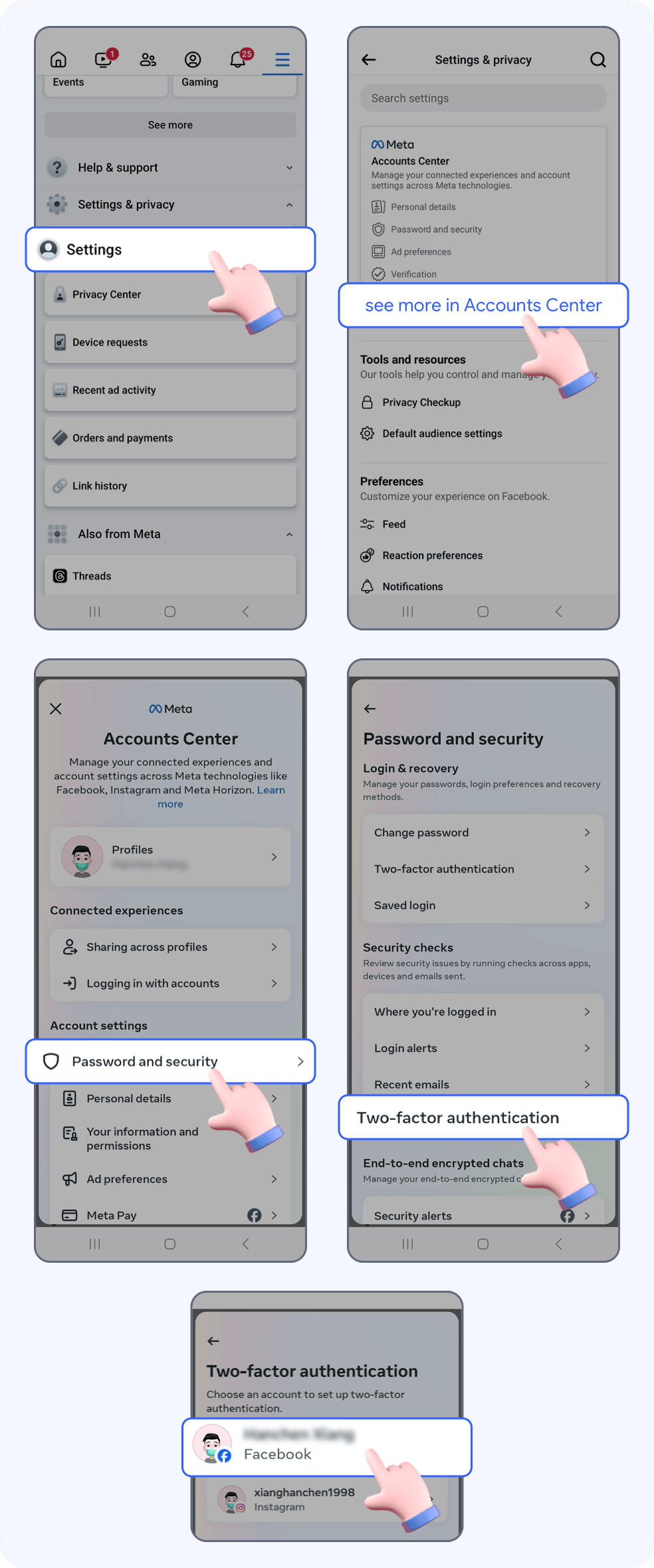
Tap Settings -> See more in Accounts Center -> Password and security -> Two-factor authentication -> select your Facebook account
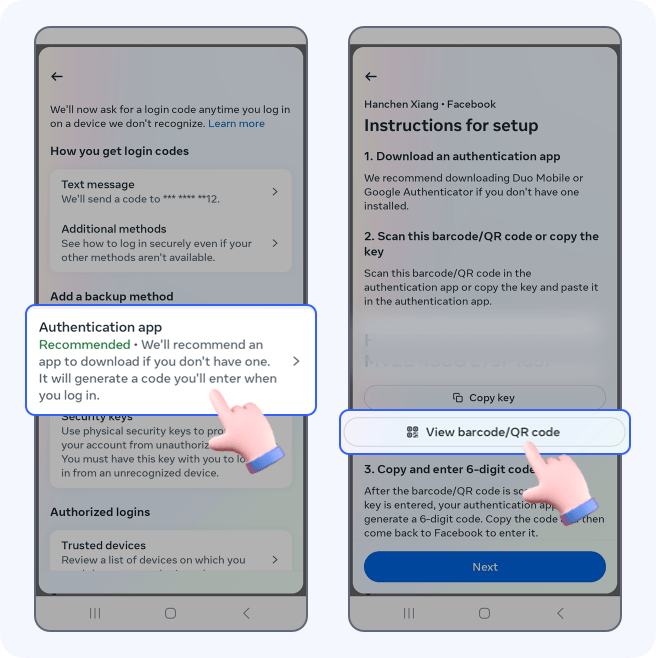
Choose Authentication app -> tap View barcode/QR code
Now you can see a QR code. It’s used to scan and save your Facebook account to Authenticator.
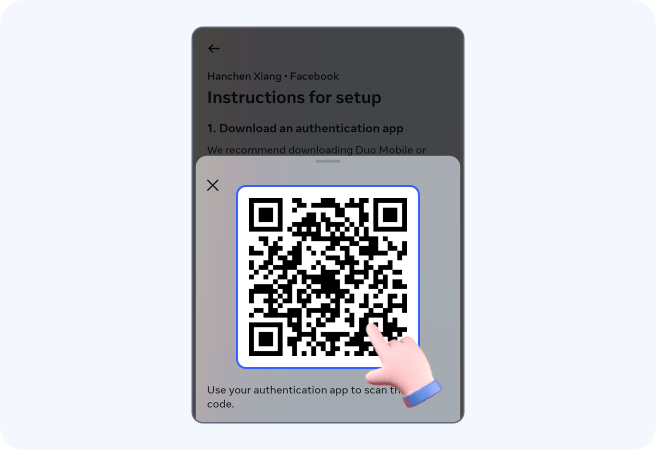
Capture QR code
Open Authenticator -> tap + -> to automatically scan the QR code page
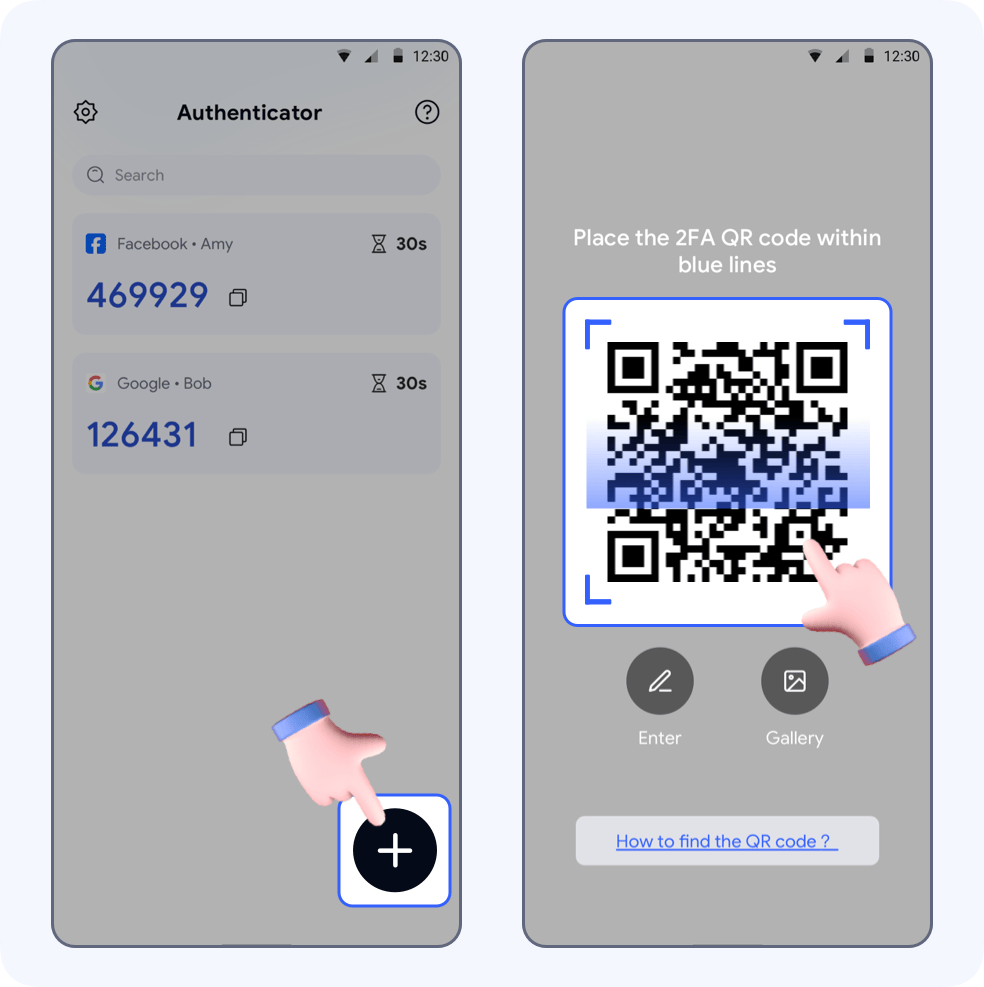
Your Facebook account will be auto saved to Authenticator. You will also see an auto-generated 6-digit code.
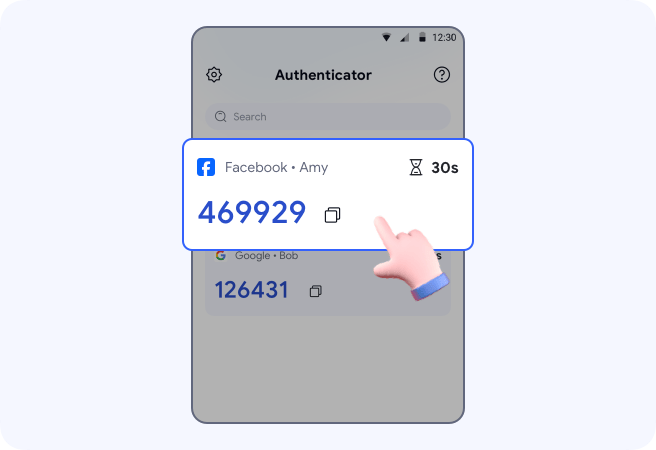
Setup complete
Go back to the device where you logged into Facebook > tap Next -> enter the code -> tap Next.
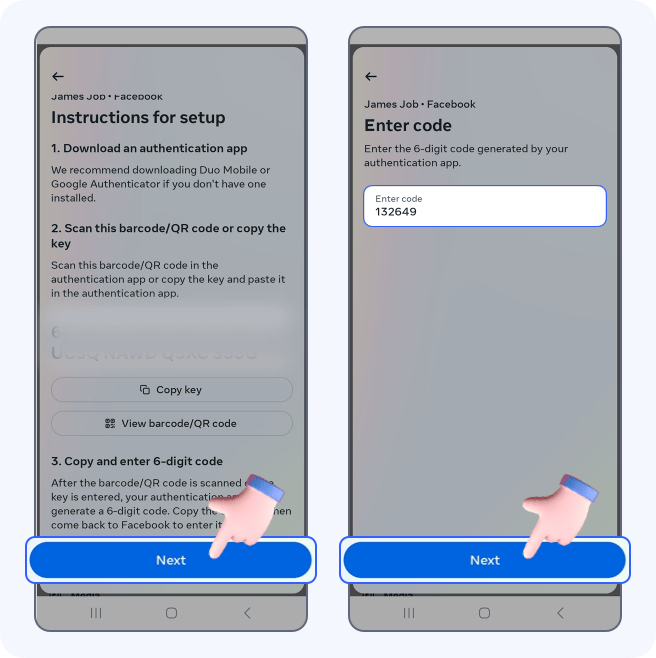
🎉Done! Two-factor authentication is successfully turned on for your Facebook account.
Open Facebook, tap Menu and then Settings & privacy.
Tap Settings -> See more in Accounts Center -> Password and security -> Two-factor authentication -> select your Facebook account
Choose Authentication app -> tap Copy key
Enter manually
Open Authenticator -> tap +, to automatically scan the QR code page, then click the Enter button
Enter “Facebook” in Account name and paste the key in Your key -> tap Add
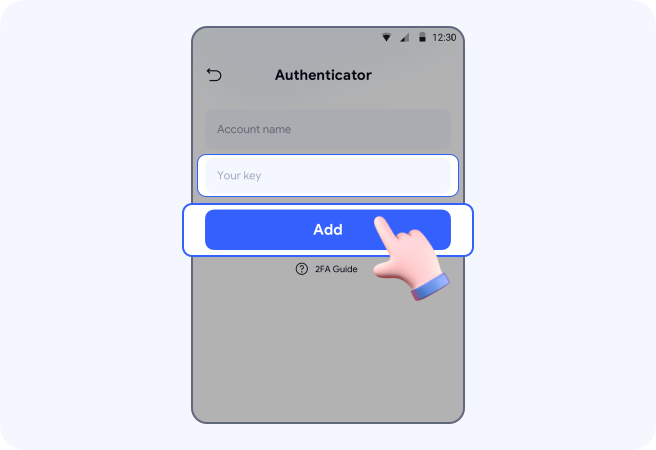
Your Facebook account will be auto saved to Authenticator. You will also see an auto-generated 6-digit code.
Setup complete
Go back to the device where you logged into Facebook > tap Next -> enter the code -> tap Next.
🎉Done! Two-factor authentication is successfully turned on for your Facebook account.