How to use
Steps to enable Two-Factor
Authentication (2FA) for PlayStation
1. Locate 2FA on PlayStation
First, Open PlayStation and log in to your account.
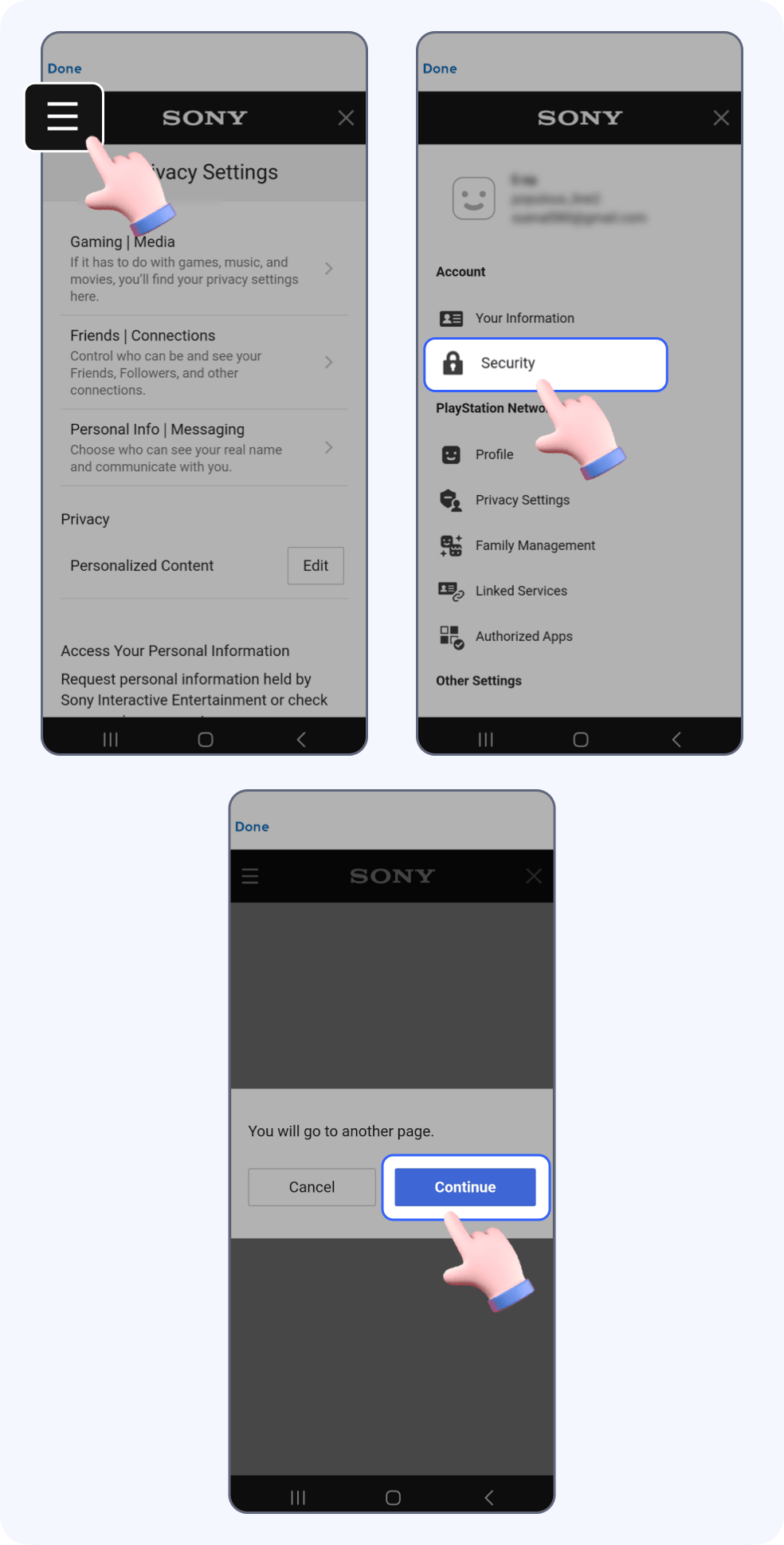
Click the profile icon in the upper left and click Privacy.

Tap the 3-bar icon in the upper left corner and click Security, then choose Continue.
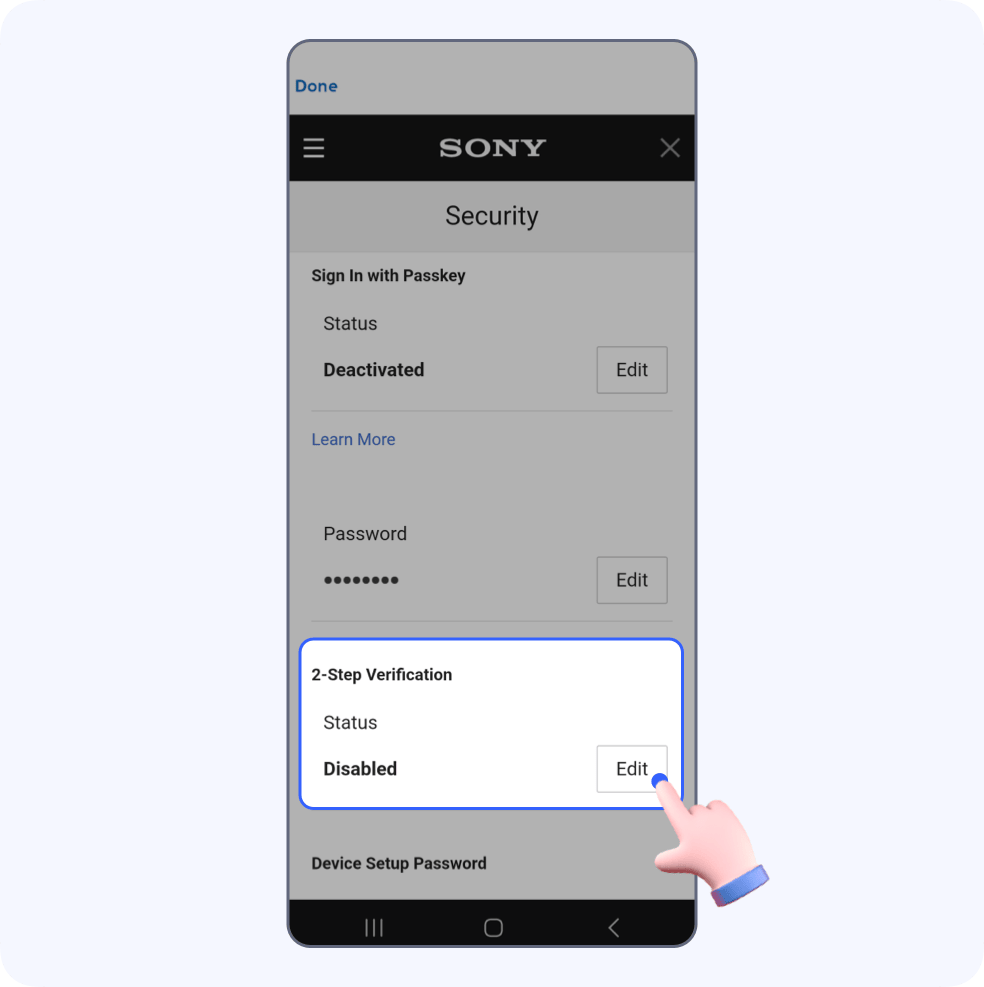
Find 2-Step Verification and click Edit.
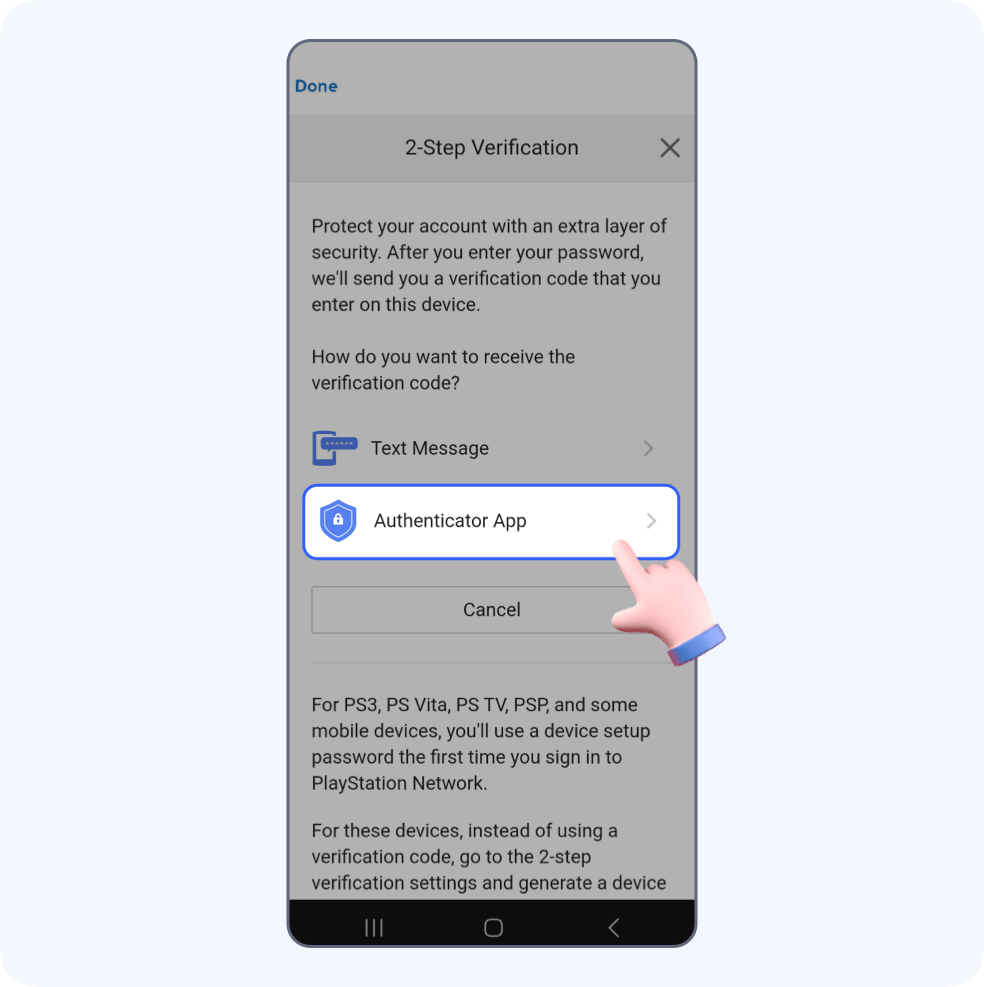
Choose Authenticator App.
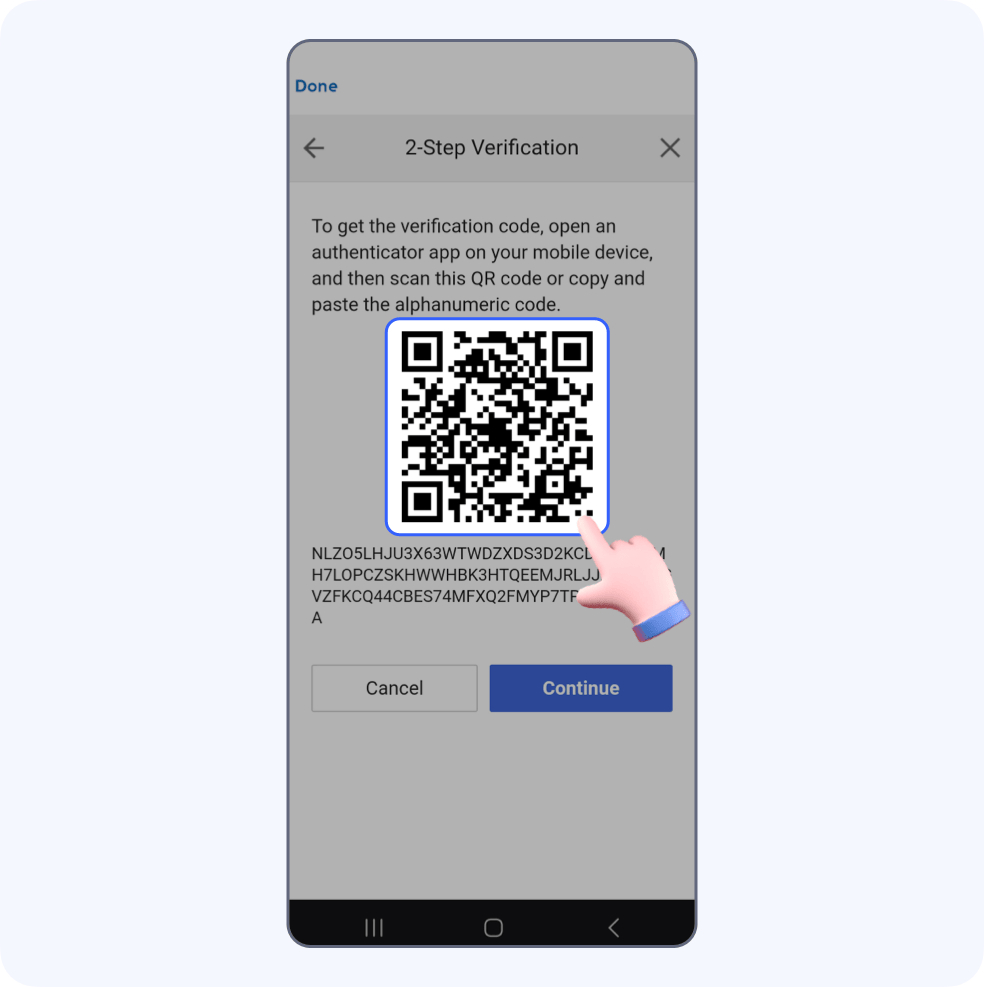
2.Capture QR code
Now you can see a QR code. It’s used to scan and save your PlayStation account to SecureAuth.Take a screenshot of this page and save it locally.
Go to Authenticator and tap Scan QR-code to go to the automatic scanning Page.
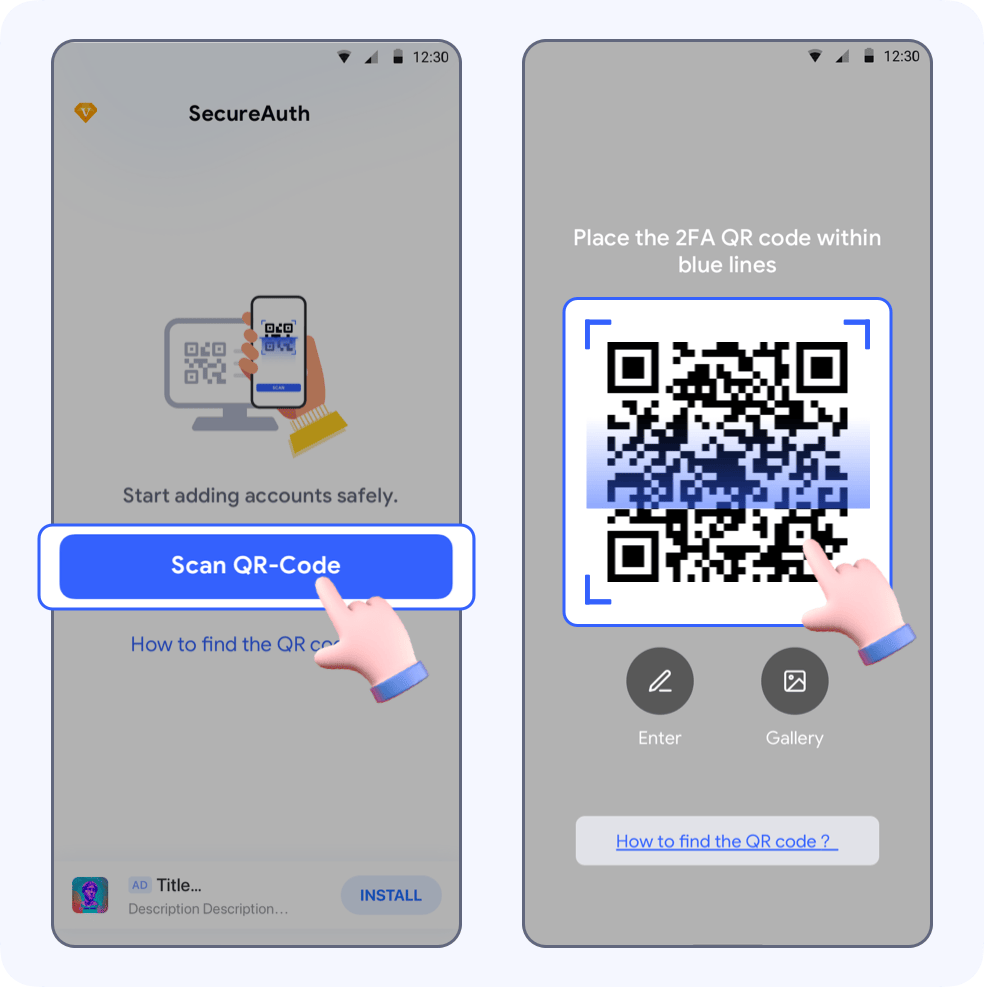
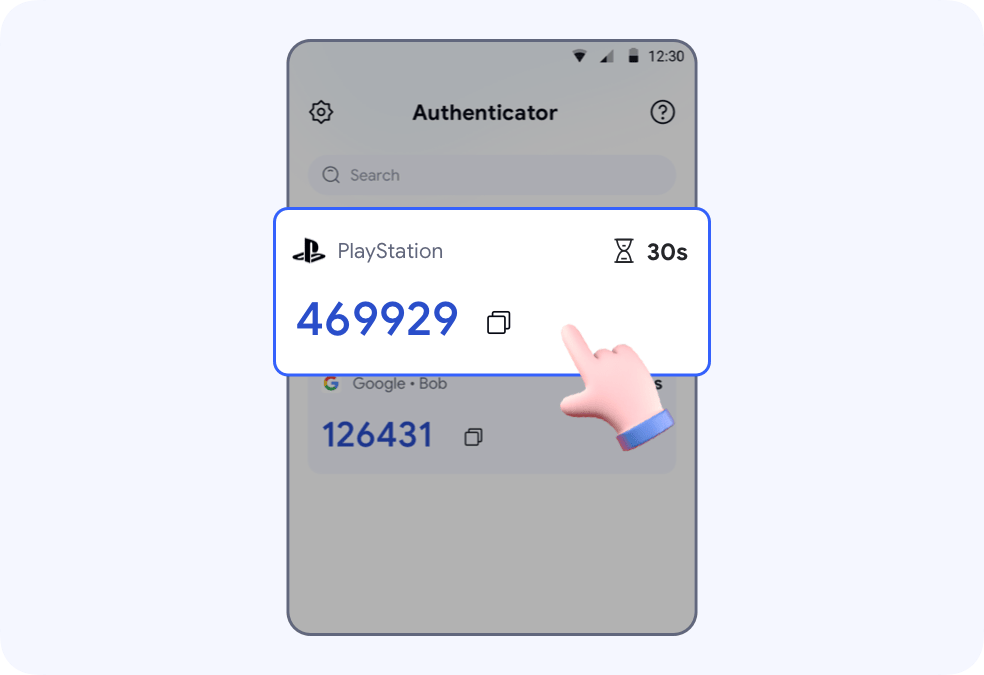
Your PlayStation account will be auto saved to SecureAuth. You can also see an auto-generated 6-digit code.
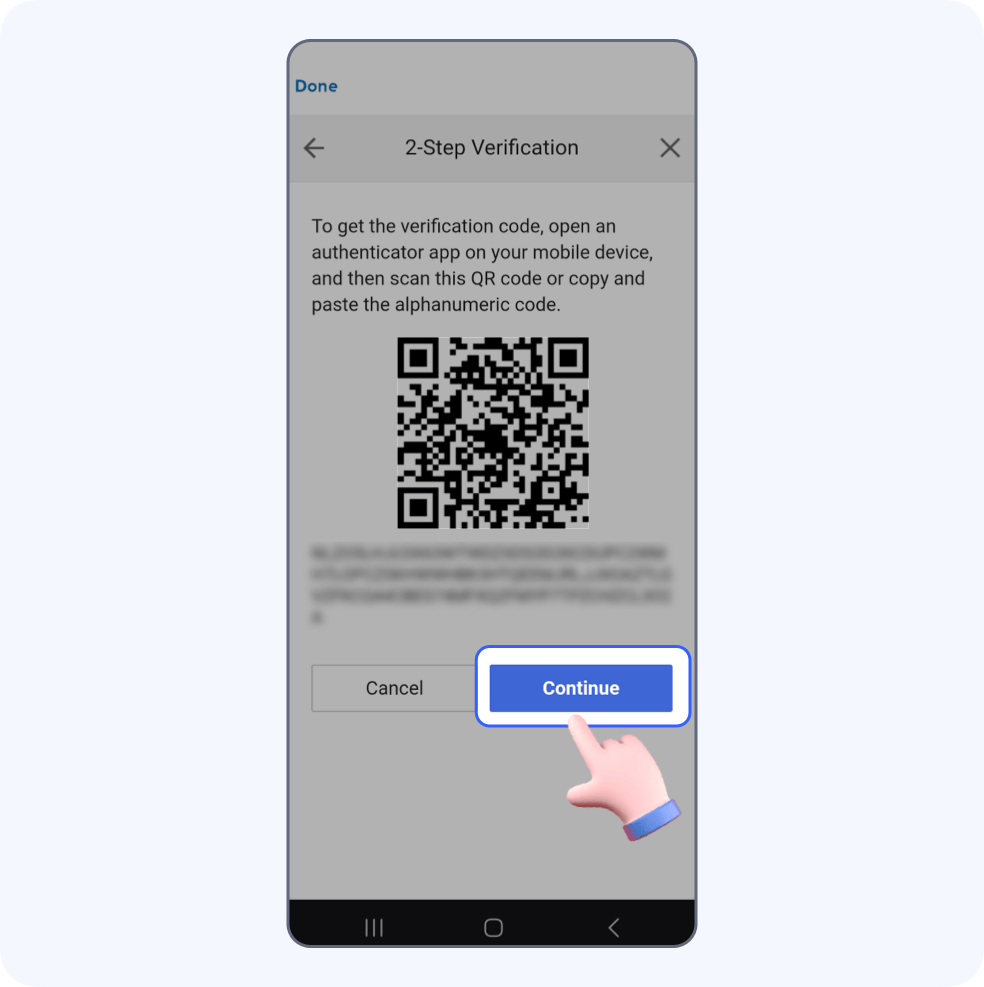
Return to PlayStation and click Continue.
3.Enable authenticat
Enter the 6-digit code and click Verify.
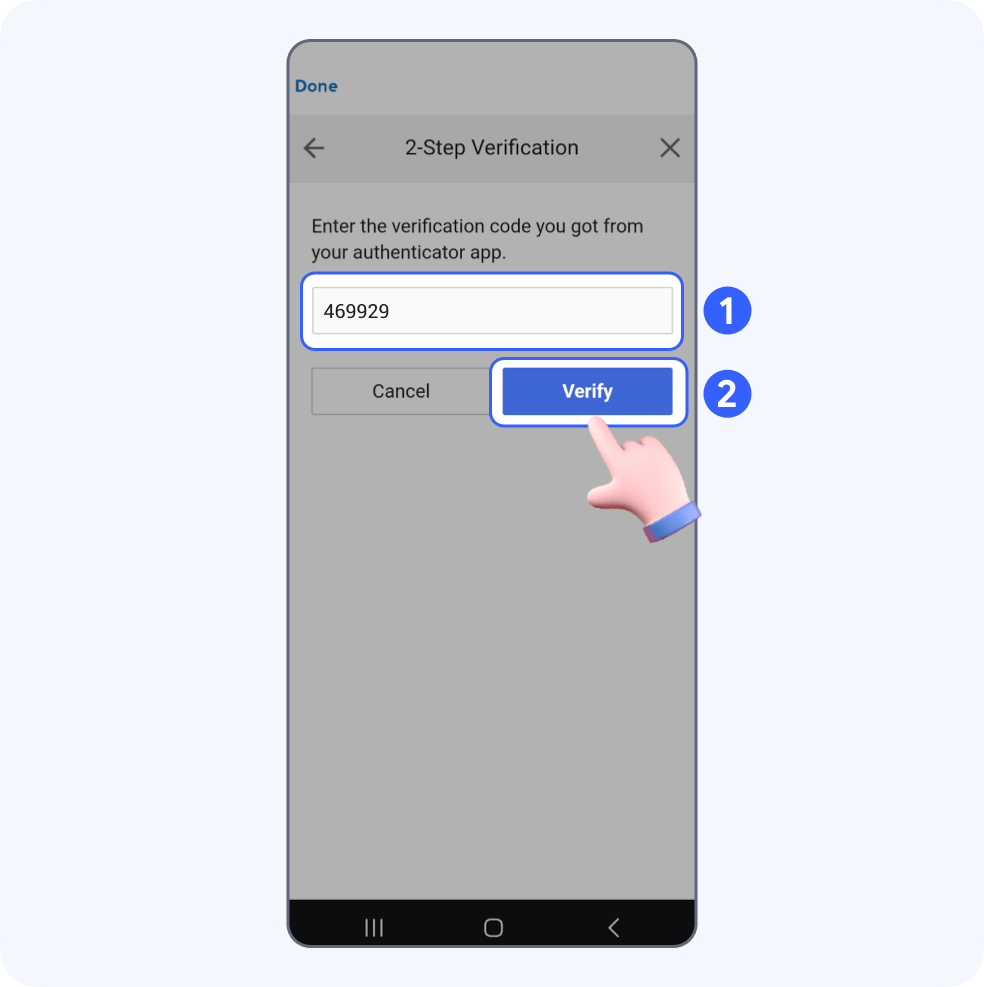
Now 2-step verification is successfully turned on and your PlayStation account is protected by SecureAuth.
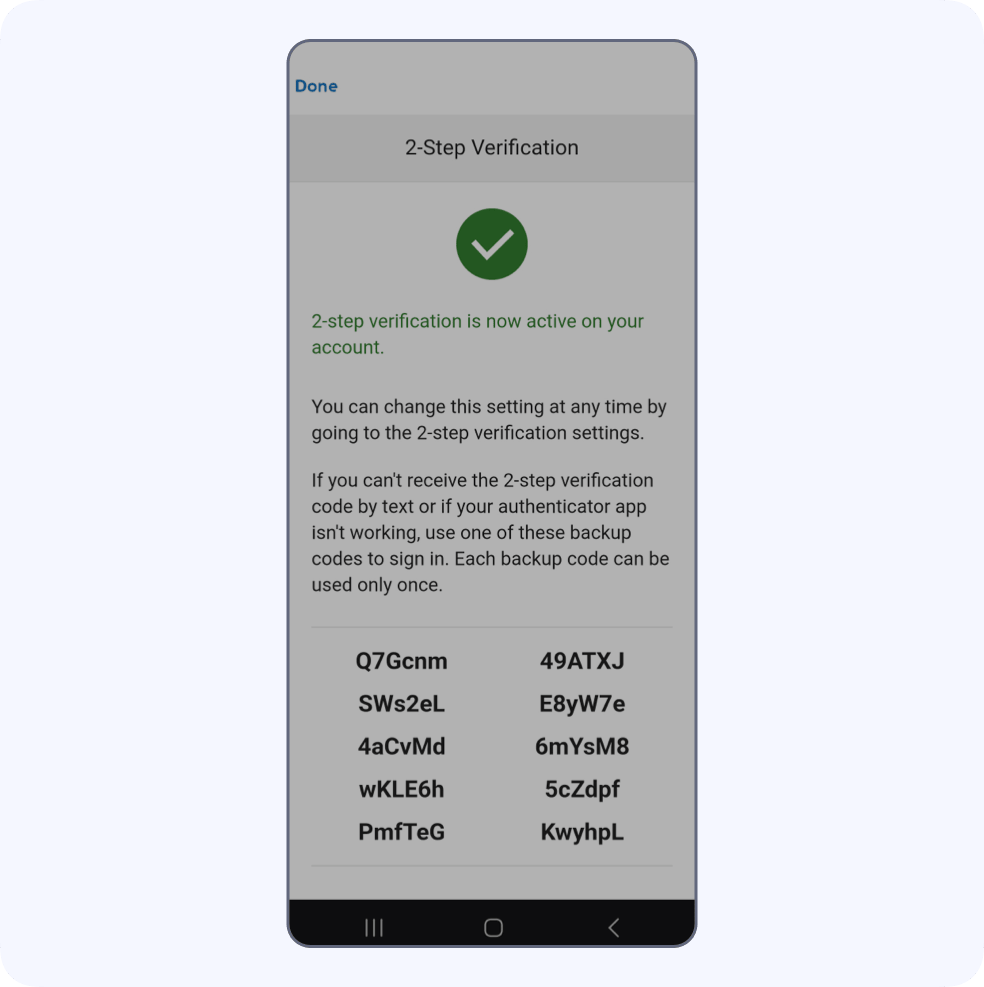
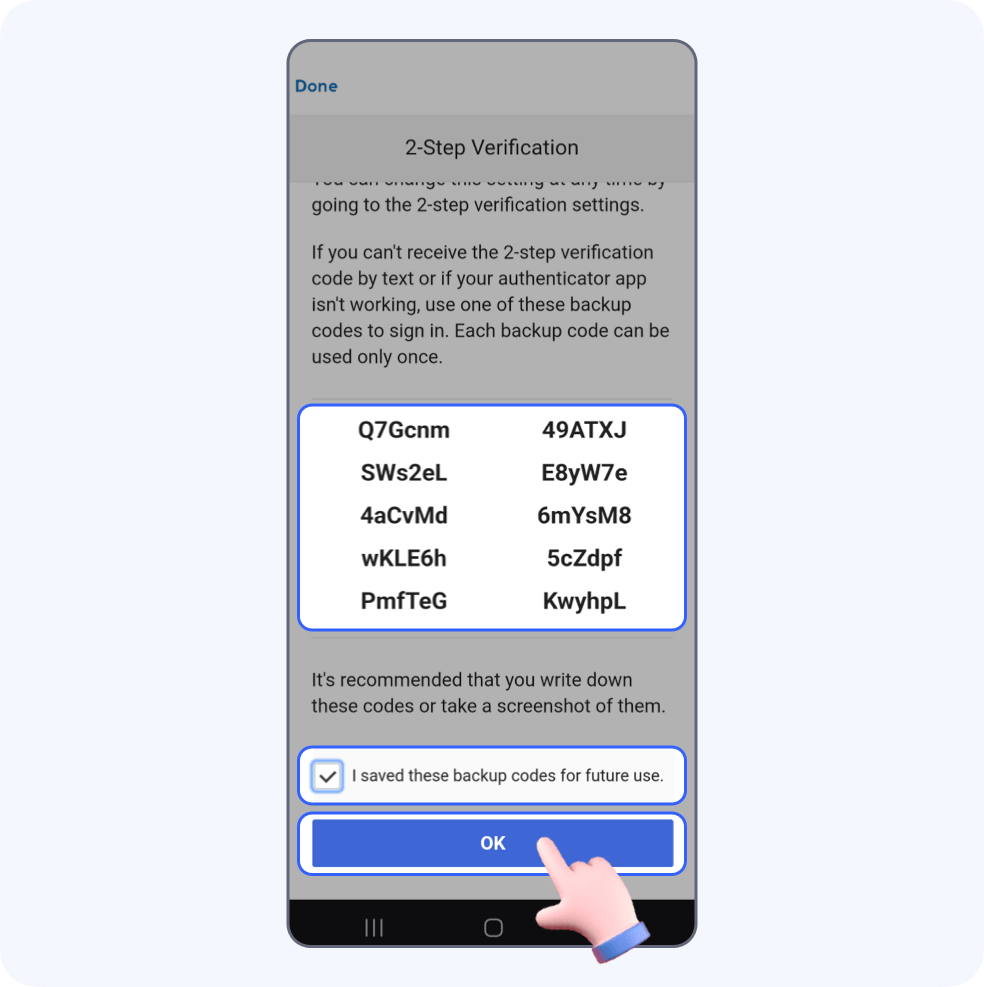
4.Save the backup codes
You will see several strings of backup code.
It is recommended to follow the steps below and save them in a safe place,then click OK.
🎉It’s all set up!